To turn a short story into a video with AI, adapt it into a short scene sequence, prepare visual references, generate or assemble individual shots, and edit them with sound. Treat the output as a production assembled from reviewed parts. A single prompt rarely gives you the same control over story, continuity, and pacing.
This is a planning workflow with an illustrative example, not a report of a finished Ficlora-generated film. Ficlora does not currently render video.
Choose a manageable version of the story
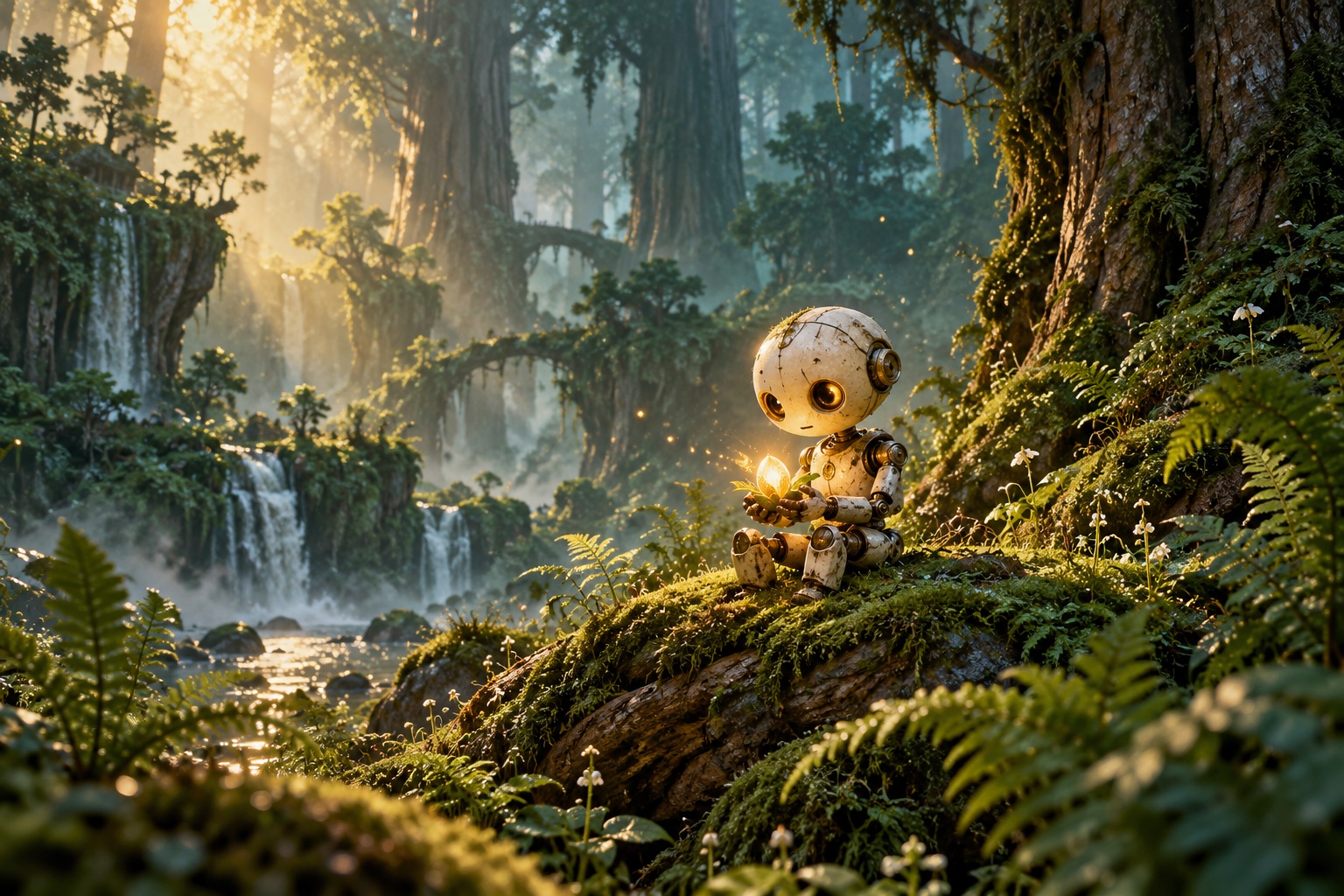
Start with one clear change: a robot finds a seed, chooses to plant it, and waits for a sign of life. That is easier to communicate than a full history of the forest. For a first production, limit locations, recurring characters, and actions that require precise physical interaction.
Decide whether the video is a complete adaptation, a narrated excerpt, or a teaser. These formats need different endings. A complete short should resolve its central action; a teaser can stop on an unanswered question.
Turn the story into beats and shots
Write one sentence for each beat, then specify what the viewer sees and hears. A five-beat seed story might use discovery, inspection, hesitation, planting, and a small response from the soil.
Do not equate a beat with a long generated clip. You may need an establishing view, an insert of the seed, and a reaction shot to communicate one beat. Use the storyboard worksheet to decide before generating assets.
Prepare references before motion
Create approved images for the robot, seed, and environment. Record colors, proportions, surface details, and scale. If your selected tool supports image references, use the same approved references across related shots. Check its current documentation for the supported workflow.
Generate a still or rough frame for a difficult shot before adding motion. It is easier to reject the wrong robot silhouette in a still than after paying attention to an entire moving sequence.
Produce shots with one main action
Give each shot a subject, action, setting, and simple camera intention. “The robot gently lowers the seed into a shallow hole” is easier to evaluate than a prompt that also asks for a camera orbit, changing weather, a facial transformation, and a growing tree.
Review every result for identity, object placement, motion, and whether the action is legible. Save accepted versions with shot numbers. Keep rejected attempts separate so they do not accidentally enter the edit.
Assemble picture and sound
Build a rough edit before refining every shot. Use temporary narration or simple sound cues to test the rhythm. Then replace temporary material with assets you can use for your intended release. Check the current terms of your generation and music tools; this guide does not establish rights for any specific output.
Watch the sequence once without sound and once without picture. The first pass tests visual clarity; the second reveals narration that repeats itself or depends on an unexplained image.
Finish with a small acceptance checklist
Confirm that the central action is understandable, recurring characters match, cuts preserve geography, captions are readable, and the ending fits the chosen format. Export and inspect the actual file on the intended viewing device.
For recurring people or creatures, use the multi-scene consistency test before producing the whole sequence. A successful first project is a coherent short with documented inputs and edits, not a folder of impressive but disconnected clips.